
Hijri Calendar
Default calendar for Bangladesh
Hijri date on every new tab
Install the Hijri Calendar, Bangladesh extension in Microsoft Edge, Chrome, Brave, Opera or any other Chromium browser. Your new tab shows today's Hijri date, and the toolbar icon opens the full month - all following the Islamic Foundation, Bangladesh announcements.
What it does
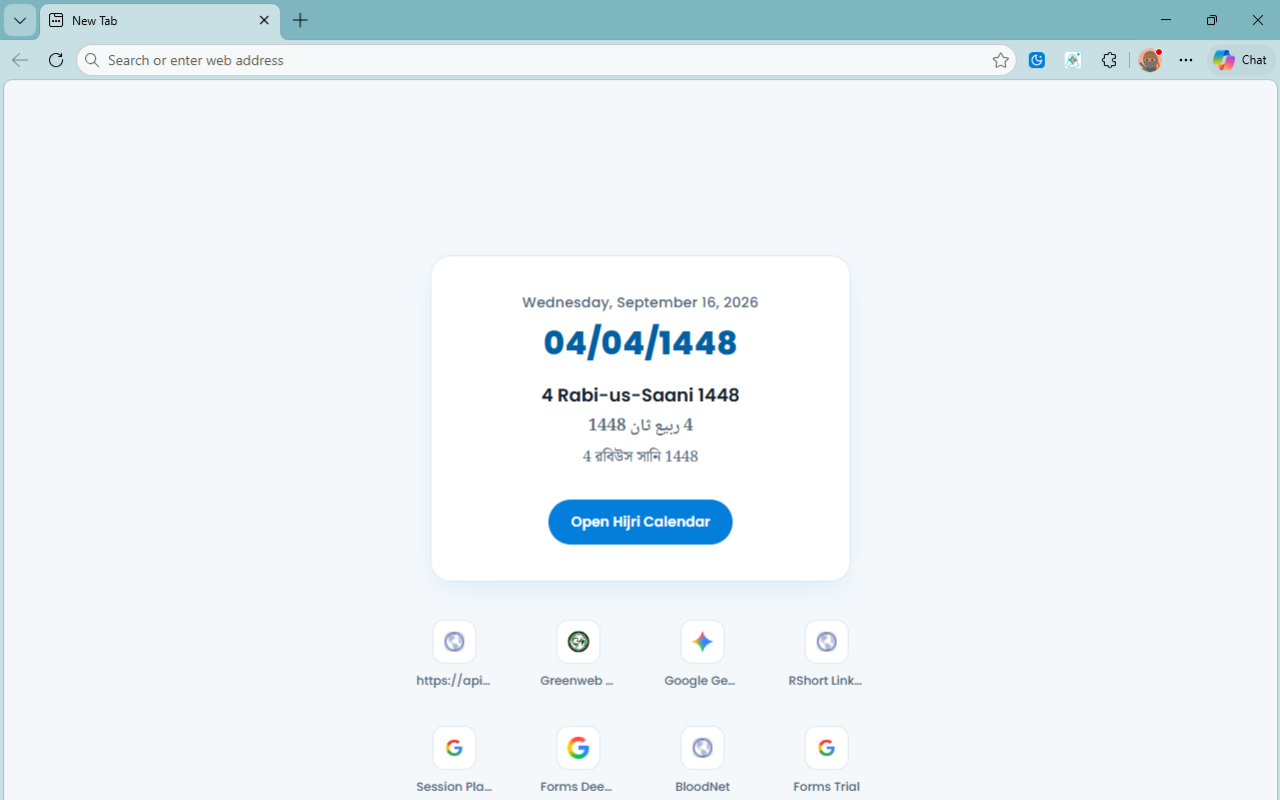
New tab date card
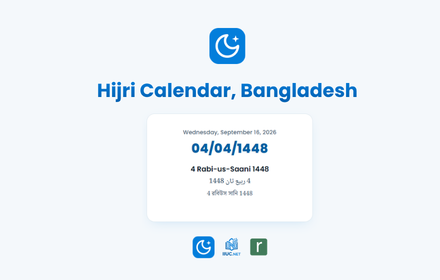
Every new tab opens with today's numeric Hijri date and the month name in English, Arabic and Bengali.
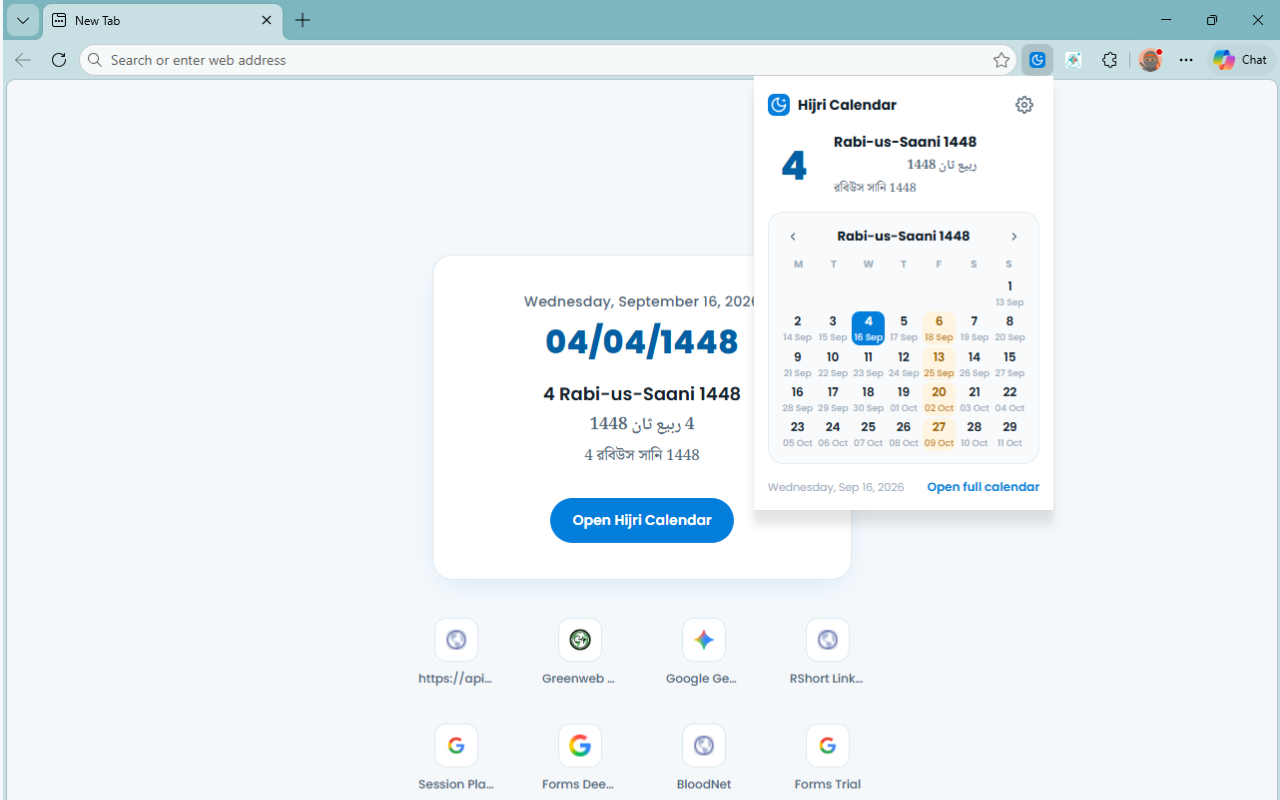
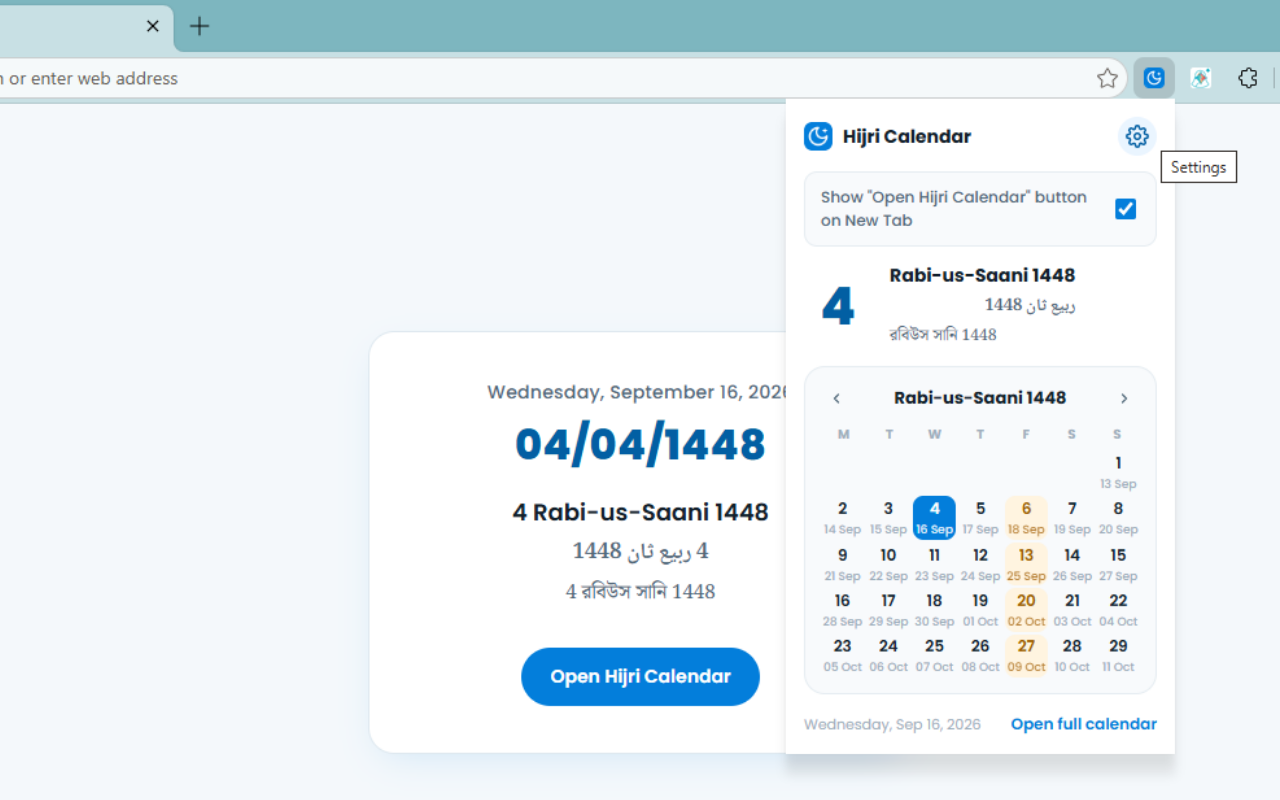
Toolbar month view
Click the toolbar icon for a compact month grid with the Gregorian date under each Hijri day.
Stays in sync
Month start dates are read from hijri.iiuc.net, so new moon-sighting announcements arrive automatically.
Screenshots
How to install manually
Prefer to install manually, or using another Chromium browser like Chrome, Brave or Opera? Loading the ZIP as an unpacked extension takes about a minute and works the same way across all of them.
-
Download the ZIP. Use the Download ZIP button above to save
hijri-edge-extension.zipto your computer. -
Unzip it. Right-click the file and choose Extract All on Windows,
or double-click it on macOS. Keep the extracted folder somewhere permanent such as
Documents- if you delete or move it later, the extension stops working. -
Open the extensions page. In Edge go to
edge://extensions. In Chrome, Brave or Opera go tochrome://extensions. - Turn on Developer mode. The toggle sits in the left sidebar in Edge and in the top-right corner in Chrome.
-
Load the folder. Click Load unpacked and select the folder you
extracted - the one that contains
manifest.json. Do not select the ZIP file itself. - Open a new tab. The Hijri date card appears right away. Pin the extension from the toolbar puzzle icon to keep the month view one click away.
Your browser may show a reminder that developer-mode extensions are running. That is normal for unpacked extensions - it won't appear if you install from Edge Add-ons instead.
Common questions
Will it work in Chrome, Brave or Opera?
Yes. It is a standard Chromium extension, so it loads the same way in Edge, Chrome, Brave, Opera, Vivaldi and other Chromium-based browsers. It does not work in Firefox or Safari.
Why must I keep the extracted folder?
Unpacked extensions run directly from that folder on disk. If it is deleted or renamed, the browser disables the extension. Keeping it in a stable location avoids that.
Does it replace my new tab page?
It adds the Hijri date card to the new tab. Your browser may ask you to confirm the change the first time, and you can revert it at any point by removing the extension.
How do I update it later?
If you installed from Edge Add-ons, updates are handled automatically, the same as any other extension from the store. If you installed the ZIP manually, download the newest version from this page, extract it over the old folder, then click the refresh icon on the extension card in the extensions page.
Is there something for Windows outside the browser?
Yes - HijriTray puts the Hijri date in your Windows system tray, no browser needed.